
GitLab is a DevOps platform that many organizations and developers rely on around the clock, nearly every day of the year. You can install it as a self-managed, standalone web application, but a single instance is always a single point of failure. This article guides you through installing and configuring a highly available (HA) GitLab environment with DRBD® and Pacemaker. In an HA GitLab environment, a node failure becomes an inconvenience that you can address in the background while GitLab stays up and running, not an event that stops your team from getting work done.
Installation overview
This article covers configuration steps tested and verified on Ubuntu 24.04 LTS. At the time of writing, this is the latest available Ubuntu LTS version that GitLab Community Edition (CE) is available for. On other Linux distributions, treat the steps in this article as a general guide and adapt them to your environment.
An HA GitLab cluster uses the following components on each node:
- GitLab
- A web-based DevOps platform. This article covers installing GitLab CE.
- Pacemaker
- A cluster resource management (CRM) framework that starts, stops, monitors, and ensures services are available within a cluster.
- Corosync
- The cluster messaging layer that Pacemaker uses for communication and membership.
- DRBD
- A virtual block device that replicates the local storage backing GitLab across cluster nodes in real time, over the network. The latest version of DRBD 9 is available through the LINBIT® PPA.
Node configuration overview
| Hostname | LVM Device | Volume Group | DRBD Device | External IP (ens7) | Replication IP (ens8) |
|---|---|---|---|---|---|
| node-a | /dev/vdb | vg_drbd | lv_gitlab | 192.168.222.20 | 172.16.0.20 |
| node-b | /dev/vdb | vg_drbd | lv_gitlab | 192.168.222.21 | 172.16.0.21 |
📝 NOTE: GitLab web services bind to a dedicated virtual IP address (
192.168.222.200).
❗ IMPORTANT: Perform most of the installation and configuration steps in this article on both nodes. Run each step on both nodes unless stated otherwise. Enter commands from the
rootaccount or with escalated privileges.
Opening ports in the Uncomplicated Firewall
If you are using a firewall such as the Ubuntu Uncomplicated Firewall (UFW), open the following ports on each node:
| Port | Protocol | Service |
|---|---|---|
| 2224 | TCP | pcsd |
| 5404 | UDP | Corosync |
| 5405 | UDP | Corosync |
| 7788 | TCP | DRBD |
| 80 | TCP | HTTP |
| 443 | TCP | HTTPS |
📝 NOTE: DRBD (by convention) uses TCP port 7788 for the first resource. Any additional resources use an incremented port number.
Run the following ufw commands to open the required ports:
ufw allow 80,443,2224,7788/tcp
ufw allow 5404:5405/udp
Installing DRBD
First, configure the LINBIT PPA on each node and refresh the repository information:
add-apt-repository -y ppa:linbit/linbit-drbd9-stack && apt update📝 NOTE: The LINBIT PPA is a community repository and might contain release candidate versions of LINBIT software packages. It differs slightly from the repositories available to LINBIT customers. The PPA is intended for testing and evaluation purposes. While LINBIT does not officially support releases in the PPA, feedback and issue reporting are welcome.
Install DRBD:
# drbd-dkms needs Linux headers matching the running kernel variant
kernel_variant=$(uname -r | sed 's/.*-//')
apt -y install linux-headers-$kernel_variant drbd-dkms drbd-utils
💡 TIP: The
kernel_variantshell variable holds the suffix of the running kernel variant (generic,virtual,lowlatency, and so on), lettingaptinstall the matchinglinux-headers-*meta-package.
Verify the newly installed DRBD 9 kernel module is loaded by running:
modprobe drbd && cat /proc/drbdCommand output should be similar to the following:
version: 9.3.2 (api:2/proto:118-124)
GIT-hash: 0605140bf521251f4f362b5bad2eeaf33dba1e9f build by root@node-a, [...]
Transports (api:22):
Installing Pacemaker
Install the Pacemaker stack:
apt -y install pacemaker corosync pcs resource-agents-extraVerify the pacemaker, corosync, and pcsd services are all enabled and running:
systemctl is-active pacemaker corosync pcsd
systemctl is-enabled pacemaker corosync pcsd
Installing GitLab
This section contains a streamlined version of steps to install GitLab on both nodes. If you are unfamiliar with the GitLab installation process, review the installation documentation before continuing with the rest of this article.
💡 TIP: Consider reviewing GitLab documentation for installing GitLab CE on Ubuntu. Some configuration steps are omitted and beyond the scope of this article.
📝 NOTE: Configuring GitLab email notifications is optional and omitted from this article. See the GitLab SMTP settings documentation for setup options.
First, install prerequisite packages for GitLab:
apt -y install curl openssh-server ca-certificates tzdata perlNext, add the GitLab package repository:
curl https://packages.gitlab.com/install/repositories/gitlab/gitlab-ce/script.deb.sh | bashUpdate repository information and then install GitLab CE:
apt update && apt -y install gitlab-ceHold the GitLab package from automatically updating when you upgrade installed packages:
apt-mark hold gitlab-ceInitialize GitLab. This entire process is automated. It does not require any user input and might take several minutes.
gitlab-ctl reconfigureAfter the initialization is finished, two separate GitLab instances should be running and reachable at the IP address of each node: http://192.168.222.20/ and http://192.168.222.21/.
Take note of the generated GitLab root account passwords on each node:
grep ^Password /etc/gitlab/initial_root_passwordAfter initializing GitLab and verifying it is running on both nodes, stop and disable the GitLab service before configuring DRBD and Pacemaker:
systemctl disable --now gitlab-runsvdir.serviceConfiguring DRBD
This article uses an LVM logical volume as the backing device, a common choice for DRBD resources.
LVM commands and example output are shown for your reference. Adjust any device naming, sizing, and other parameters to match your environment.
vgcreate vg_drbd /dev/vdb
lvcreate -L 20G -n lv_gitlab vg_drbd
Save the GitLab DRBD resource definition to /etc/drbd.d/gitlab.res:
resource gitlab {
    protocol C;
    device    /dev/drbd0;
    disk      /dev/vg_drbd/lv_gitlab;
    meta-disk internal;
    on node-a {
        address 172.16.0.20:7788;
    }
    on node-b {
        address 172.16.0.21:7788;
    }
}
💡 TIP: For more detailed instructions regarding initial configuration, see the “Configuring DRBD” section of the DRBD User Guide.
Copy the gitlab.res resource definition to both nodes.
After both nodes have the resource definition, create the resource metadata on both nodes:
drbdadm create-md gitlabNext, bring the resource up on both nodes:
drbdadm up gitlabThe DRBD resource should now be Connected and in the Secondary role on both nodes, with an Inconsistent disk state.
Verify by running drbdadm status on either node:
gitlab role:Secondary
  disk:Inconsistent open:no
  node-b role:Secondary
    peer-disk:Inconsistent
For a new resource with no existing data, skip the initial full synchronization with the --clear-bitmap option.
Run the following command on one node only:
drbdadm --clear-bitmap new-current-uuid gitlab/0📝 NOTE: The
/0suffix specifies volume number 0, which is the default volume for a single-volume resource. You must still specify the volume number explicitly.
The DRBD resource should now show UpToDate on both nodes.
Verify by running drbdadm status again:
gitlab role:Secondary
  disk:UpToDate open:no
  node-a role:Secondary
    peer-disk:UpToDate
Creating a file system
❗ IMPORTANT: Pay close attention to which node each command runs on in this section.
After creating and initializing the DRBD resource, create a file system on the new DRBD block device (/dev/drbd0) on node-a only:
mkfs.ext4 /dev/drbd0📝 NOTE: Using
ext4is not required. You can use other file systems such asxfsorbtrfsinstead.
Configuring the GitLab data directory
Mount the new file system temporarily to set up the folder structure under /mnt/gitlab.
Create the /mnt/gitlab mount point on both nodes:
mkdir /mnt/gitlabTemporarily mount the new file system on node-a only:
mount /dev/drbd0 /mnt/gitlabMove the original GitLab configuration directories on both nodes:
mv /etc/gitlab{,.orig}
mv /var/log/gitlab{,.orig}
mv /var/opt/gitlab{,.orig}
Create new directories for GitLab backed by DRBD on node-a only:
mkdir -p /mnt/gitlab/etc/gitlab
mkdir -p /mnt/gitlab/var/log/gitlab
mkdir -p /mnt/gitlab/var/opt/gitlab
Use symbolic links to map GitLab directories to the new replicated file system on both nodes:
ln -s /mnt/gitlab/etc/gitlab /etc/gitlab
ln -s /mnt/gitlab/var/log/gitlab /var/log/gitlab
ln -s /mnt/gitlab/var/opt/gitlab /var/opt/gitlab
Copy the original GitLab data and configuration to the new replicated file system on node-a only:
rsync -azpv /etc/gitlab.orig/* /mnt/gitlab/etc/gitlab
rsync -azpv /var/log/gitlab.orig/* /mnt/gitlab/var/log/gitlab
rsync -azpv /var/opt/gitlab.orig/* /mnt/gitlab/var/opt/gitlab
Finally, unmount the DRBD backed file system on node-a:
umount /mnt/gitlabGitLab data and configuration now live on a highly available DRBD-backed file system.
Configuring Pacemaker and Corosync
This section uses pcs to initialize a 2-node Pacemaker cluster.
Set a password for the hacluster user on both nodes:
passwd hacluster📝 NOTE: Use the same
haclusterpassword on both nodes. Thepcs host authcommand exchanges credentials betweenpcsddaemons, and the password must match across the cluster.
Enable and start the pcsd service:
systemctl enable --now pcsdOn one node only, authenticate the cluster nodes:
pcs host auth -u hacluster \
    node-a addr=172.16.0.20 \
    node-b addr=172.16.0.21
💡 TIP: The
addr=parameter selects the network thatpcsuses to reach the peerpcsddaemon.
On one node only, create the Corosync cluster configuration:
pcs cluster setup gitlab-ha --force \
    node-a addr=172.16.0.20 addr=192.168.222.20 \
    node-b addr=172.16.0.21 addr=192.168.222.21
💡 TIP: The two
addr=entries per node give Corosync redundant communication rings: ring 0 over the replication network, and ring 1 over the external network.
📝 NOTE: On Ubuntu, installing the
pacemakerpackage creates a defaultcorosync.conf. This requires using the--forceflag.
On one node only, start and enable the cluster on both nodes:
pcs cluster start --all
pcs cluster enable --all
Verify cluster membership with both nodes listed Online:
pcs statusThe output looks similar to the following:
Cluster name: gitlab-ha

WARNINGS:
No stonith devices and stonith-enabled is not false

Cluster Summary:
  * Stack: corosync (Pacemaker is running)
  * Current DC: node-a (version 2.1.6-6fdc9deea29) - partition with quorum
  * Last updated: [...] on node-a
  * Last change:  [...] by hacluster via crmd on node-a
  * 2 nodes configured
  * 0 resource instances configured

Node List:
  * Online: [ node-a node-b ]

Full List of Resources:
  * No resources

Daemon Status:
  corosync: active/enabled
  pacemaker: active/enabled
  pcsd: active/enabled
📝 NOTE: It can take a few seconds for the nodes to enter an Online state while Pacemaker elects a designated coordinator (DC).
Configuring Pacemaker resources
This section configures an HA GitLab cluster with the following parameters:
- The DRBD resource backing all GitLab data (database, configuration, repositories, uploads, and more) is named
gitlaband corresponds to the virtual block device/dev/drbd0. - The DRBD virtual block device (
/dev/drbd0) holds anext4file system mounted at/mnt/gitlab. - GitLab uses that file system, and its web server listens on a dedicated cluster IP address,
192.168.222.200. - Pacemaker manages the
gitlab-runsvdirsystemd service, which controls the Omnibus GitLab interface and related processes.
📝 NOTE: You already disabled
gitlab-runsvdir.serviceearlier so it does not start automatically at boot.
On one node only, use the following pcs workflow to configure the cluster. All changes are staged to a local copy of the CIB and applied to the running cluster in a single atomic push. Adjust node names, IP addresses, and resource names as needed for your environment.
Make a copy of the running CIB to a local file:
pcs cluster cib cib-local.xmlApply all configuration changes to the local file. None of the following commands affect the running cluster until the CIB is pushed in the final step.
Set cluster properties, including maintenance mode so resources do not start immediately when the CIB is pushed:
pcs -f cib-local.xml property set \
  stonith-enabled=false \
  maintenance-mode=true
❗ IMPORTANT: Without fencing, a 2-node cluster runs the risk of a split-brain occurring. While split-brains can be manually recovered from, they can lead to extra downtime, and in the worst case, potential data loss.
Create the DRBD primitive resource and promotable clone:
pcs -f cib-local.xml resource create p_drbd_gitlab ocf:linbit:drbd \
    drbd_resource=gitlab \
    op start interval=0s timeout=240s \
    op stop interval=0s timeout=100s \
    op monitor interval=29s role=Promoted \
    op monitor interval=31s role=Unpromoted

pcs -f cib-local.xml resource promotable p_drbd_gitlab ms_drbd_gitlab \
    meta promoted-max=1 promoted-node-max=1 \
    clone-max=2 clone-node-max=1 \
    notify=true
Create the file system, GitLab service, and virtual IP resources:
pcs -f cib-local.xml resource create p_fs_gitlab ocf:heartbeat:Filesystem \
    device="/dev/drbd0" directory="/mnt/gitlab" fstype=ext4 \
    op start interval=0s timeout=60s \
    op stop interval=0s timeout=60s \
    op monitor interval=20s timeout=40s

pcs -f cib-local.xml resource create p_gitlab systemd:gitlab-runsvdir \
    op start interval=0s timeout=120s \
    op stop interval=0s timeout=120s \
    op monitor interval=20s timeout=100s

pcs -f cib-local.xml resource create p_ip_gitlab IPaddr2 \
    ip=192.168.222.200 cidr_netmask=24 \
    op start interval=0s timeout=20s \
    op stop interval=0s timeout=20s \
    op monitor interval=20s timeout=20s
Group the file system, IP, and GitLab resources so they always run together on the same node:
pcs -f cib-local.xml resource group add g_gitlab p_fs_gitlab p_ip_gitlab p_gitlabAdd constraints so the resource group runs only on the node where DRBD is promoted, and starts only after DRBD promotion completes:
pcs -f cib-local.xml constraint colocation add g_gitlab with Promoted ms_drbd_gitlab INFINITY
pcs -f cib-local.xml constraint order promote ms_drbd_gitlab then start g_gitlab
Push the staged configuration to the running cluster in a single atomic operation:
pcs cluster cib-push cib-local.xmlAt this point, Pacemaker does not immediately start resources in the cluster because of the property maintenance-mode=true.
On one node only, take the cluster out of maintenance mode:
pcs property set maintenance-mode=falseAfter the cluster exits maintenance mode, Pacemaker:
- Starts DRBD on both nodes.
- Selects one node and promotes DRBD from Secondary to Primary.
- Mounts the file system, configures the cluster IP address, and starts the GitLab server instance on the same node.
- Begins monitoring resources.
Checking cluster status after configuration
From either node, verify your Pacemaker cluster status:
pcs statusThe following example output shows that GitLab is running on node-b:
Cluster name: gitlab-ha
Cluster Summary:
  * Stack: corosync (Pacemaker is running)
  * Current DC: node-a (version 2.1.6-6fdc9deea29) - partition with quorum
  * Last updated: [...] on node-a
  * Last change:  [...] by root via cibadmin on node-a
  * 2 nodes configured
  * 5 resource instances configured

Node List:
  * Online: [ node-a node-b ]

Full List of Resources:
  * Clone Set: ms_drbd_gitlab [p_drbd_gitlab] (promotable):
    * Promoted: [ node-b ]
    * Unpromoted: [ node-a ]
  * Resource Group: g_gitlab:
    * p_fs_gitlab   (ocf:heartbeat:Filesystem):  Started node-b
    * p_ip_gitlab   (ocf:heartbeat:IPaddr2):     Started node-b
    * p_gitlab  (systemd:gitlab-runsvdir):   Started node-b

Daemon Status:
  corosync: active/enabled
  pacemaker: active/enabled
  pcsd: active/enabled
Output from a drbdadm status command entered on node-b shows the GitLab resource is Primary:
gitlab role:Primary
  disk:UpToDate open:yes
  node-a role:Secondary
    peer-disk:UpToDate
Checking file system mounts on node-b with mount | grep gitlab shows that the replicated file system is currently mounted:
/dev/drbd0 on /mnt/gitlab type ext4 (rw,relatime)Accessing GitLab
The HA GitLab server instance is ready for use. Access GitLab through the virtual IP, http://192.168.222.200/.
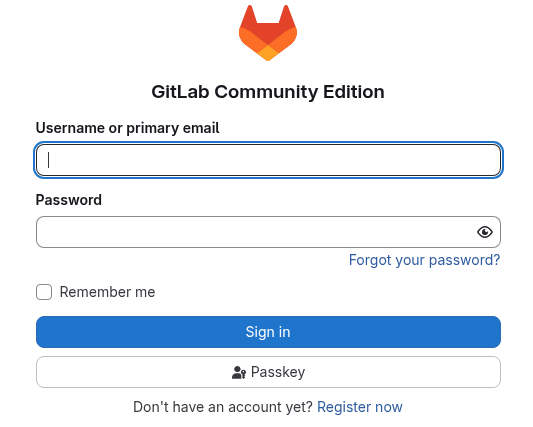
💡 TIP: GitLab defines the default
external_urlashttps://gitlab.example.comin/etc/gitlab/gitlab.rb. Consider adding a DNS record or/etc/hostsentry on client machines that resolves to the virtual IP address (192.168.222.200). To update theexternal_url, change the value and rungitlab-ctl reconfigureon the node where GitLab is currently running.
Failure modes
This section walks through specific failure modes and how the cluster responds to each one.
Node failures
When a cluster node suffers an unexpected outage, Pacemaker marks it Offline and starts the affected resources on the surviving peer.
📝 NOTE: The DRBD User Guide also explains node failure in detail.
Investigate the cause and bring the node back online to restore the cluster to a healthy state.
Storage failures
When the storage backing a DRBD resource fails on the Primary node, DRBD transparently detaches from its backing device and serves data over the replication link from its peer node.
📝 NOTE: The DRBD User Guide explains this in detail.
Resolve the disk failure or replace the disk on the Primary node to restore the cluster to a healthy state.
Service failures
If gitlab-runsvdir.service unexpectedly shuts down, segfaults, or otherwise fails, the monitor operation of the p_gitlab resource detects the failure and restarts the service.
📝 NOTE: The
gitlab-runsvdirsystemd service starts the Omnibus GitLab interface, which you interact with through thegitlab-ctlfront end. Omnibus runs essential sub-processes such aspostgresql,nginx, andgrafana. If a sub-process is killed, Omnibus attempts to restart it. Rungitlab-ctl statusto list all processes that Omnibus manages.
Network failures
If the DRBD replication link fails, DRBD continues to serve data from the Primary node, and re-synchronizes the DRBD resource automatically as soon as network connectivity is restored.
📝 NOTE: The DRBD User Guide explains how this works.
Conclusion
Building an HA GitLab cluster with DRBD and Pacemaker is a simple and effective solution for keeping your team productive through node failures and other disruptions.
If you have questions or need help with the installation steps in this article, visit the LINBIT Community Forum and join the community, or reach out to us directly.
Additional information and resources
- The GitLab project page and GitLab reference architectures.
- See the Pacemaker Clustering Command Cheatsheet for managing Pacemaker clusters with
pcs. - To learn more about DRBD, check out the DRBD User Guide.
- Always configure fencing for 2-node clusters in production to avoid data divergence (so-called “split-brain” situations).
- See the LINBIT knowledge base article on 2-node Pacemaker Clusters: Quorum, Fencing, and Recovery Considerations for more depth.
Alternative solutions to GitLab HA
This article demonstrated one method to achieve an HA GitLab environment. Using DRBD and Pacemaker can be a cost-effective and fairly simple way to make any service highly available.
For larger and more robust GitLab environments, GitLab supports other HA configurations, for example:
- GitLab-hosted SaaS
- For HA without running infrastructure yourself, GitLab offers GitLab.com (multitenant SaaS) and GitLab Dedicated (single-tenant, isolated AWS infrastructure).
- GitLab with NFS
- GitLab supports multiple instances for scaling and HA when using NFS for storage. See the GitLab High Availability Reference Architecture. For the underlying NFS HA layer, see the NFS High Availability Clustering Guide (DRBD + Pacemaker) or “NFS High Availability on RHEL 9 with DRBD Reactor” (DRBD + DRBD Reactor).
- Omnibus GitLab with external services
- In this setup, Omnibus does not need to manage every bundled service. For example, you can configure PostgreSQL, NGINX, and Redis for high availability on their own.
- GitLab Geo
- A premium feature, not available in GitLab CE. GitLab Geo maintains a replicated, read-only, fully operational instance that you can promote during disaster recovery.
Changelog:
2026-06-01:
- Tested instructions on Ubuntu 24.04 LTS. GitLab CE is not yet available for Ubuntu 26.04 LTS.
- Replaced
crmshwithpcscommands. - Replaced
crm configure load replace cib.txtworkflow with thepcs cluster cib/pcs -f/pcs cluster cib-pushpattern. - Replaced deprecated
ms(legacy promotable clone) resource type with modernpcs resource promotablesyntax. - Used
pcs host authandpcs cluster setupcommands for bootstrapping the Pacemaker cluster, rather than editing acorosync.conffile. - Updated firewall ports: removed
5403/tcp(unused) and added2224/tcpfor pcsd. - Removed
resource-stickinessfrom Pacemaker configuration. It is not needed in this setup. - Showed installing GitLab CE (
-ce) as stated in prerequisites section, rather than Enterprise Edition. - Updated Pacemaker fencing documentation link to latest.
- Fixed
noda-atypo.
2024-12-21:
Originally published article.