The LINBIT® deployment tool is a graphical tool that steps you through the process of installing and configuring LINSTOR® in a cluster of nodes. LINSTOR is a software-defined storage (SDS) solution that you can use to build high availability (HA) and disaster recovery (DR) solutions for critical applications and data. By using the deployment tool, you can breeze through installation and configuration steps that might otherwise be intimidating for new users. Even for experienced users, installing and setting up a LINSTOR cluster might take time on the order of hours, depending on the architecture and deployment options. With the deployment tool, it takes you a few minutes to enter some information and make click-through selections that define your cluster. Then the deployment tool handles all the back-end work automatically in about 25 minutes, so that you can move on to Day 1 and Day 2 operations.
The LINBIT Ansible collections provide the installation and deployment power underneath the surface. For all the simplicity and time-saving benefits that come from using the deployment tool, you do not need to sacrifice any power or skip any recommended deployment practices.
This article introduces the deployment tool and walks you through the basic steps of using it. To use the deployment tool, you will need to either be an existing LINBIT customer or have the LINBIT team set up an evaluation account.
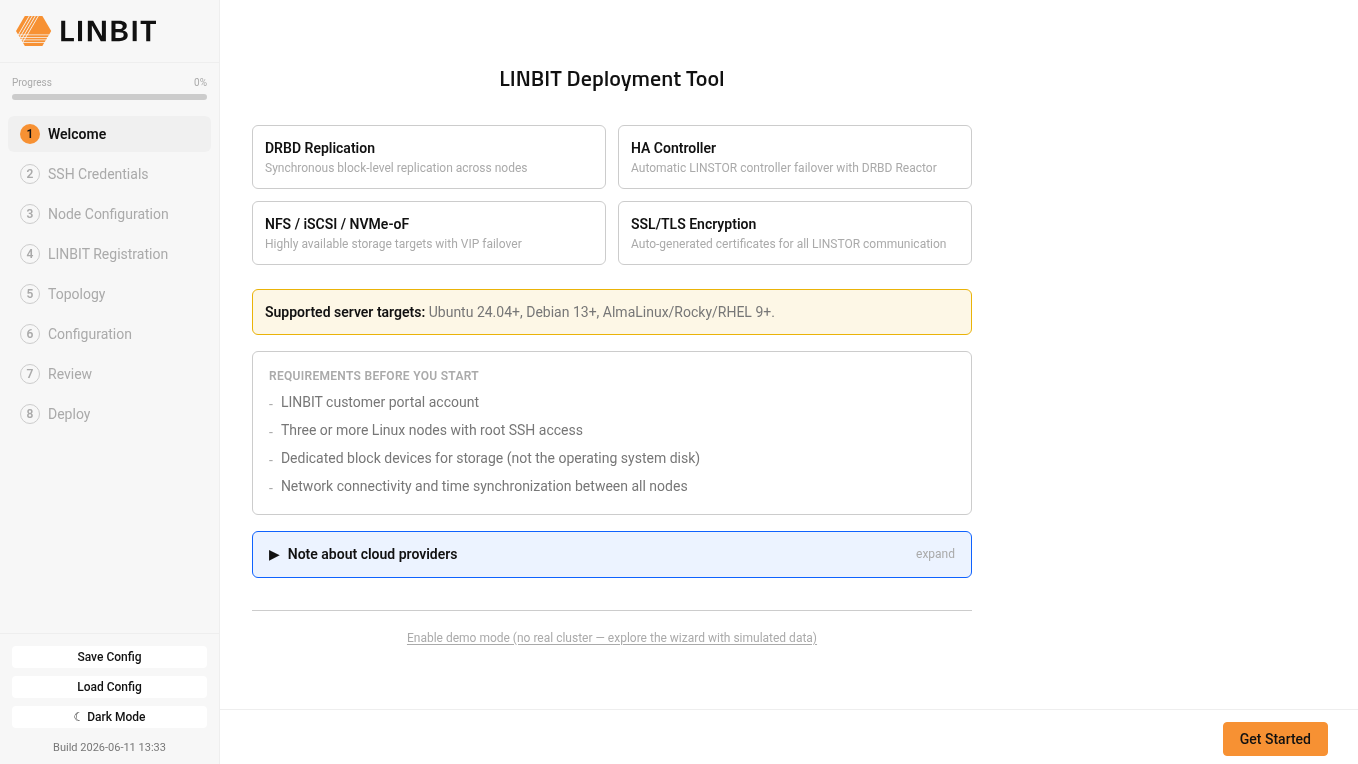
Welcome to the LINBIT Deployment Tool
From the LINBIT website, you can download the deployment tool as a Linux AppImage, a macOS DMG, or a Windows executable file. You can use the deployment tool to install and set up LINSTOR on bare-metal systems or virtual machines (VMs). The tool also supports deploying LINSTOR in some cloud environments, such as Hetzner Cloud, DigitalOcean VPC Hosting, and OVHcloud Public Cloud. The deployment tool relies on gratuitous ARP capabilities in a cluster. If a cloud provider supports this, you can likely use the deployment tool in that environment.
Configuring deployment tool access to nodes
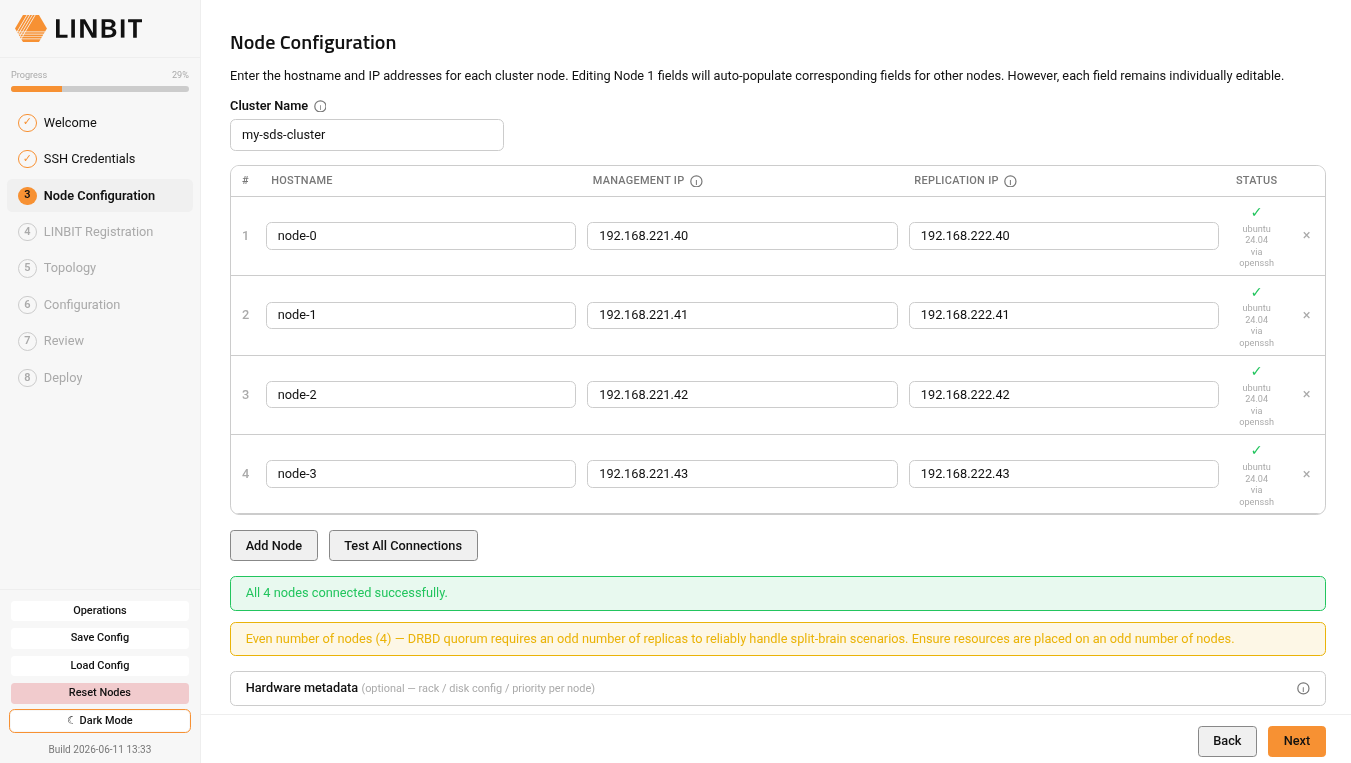
The deployment tool requires passwordless SSH root user access to the nodes you want to deploy LINSTOR on. After giving SSH information to the tool, you point the tool at the systems you want to install and configure LINSTOR on by supplying hostnames, IP addresses, and a cluster name. By using the Test All Connections button, the deployment tool will verify that it can reach all your systems over network interfaces, before you continue to the next screen.
After verifying the deployment tool has access to your nodes, you enter your LINBIT customer or evaluation information to register your nodes with LINBIT.
Choosing a cluster topology and storage configuration
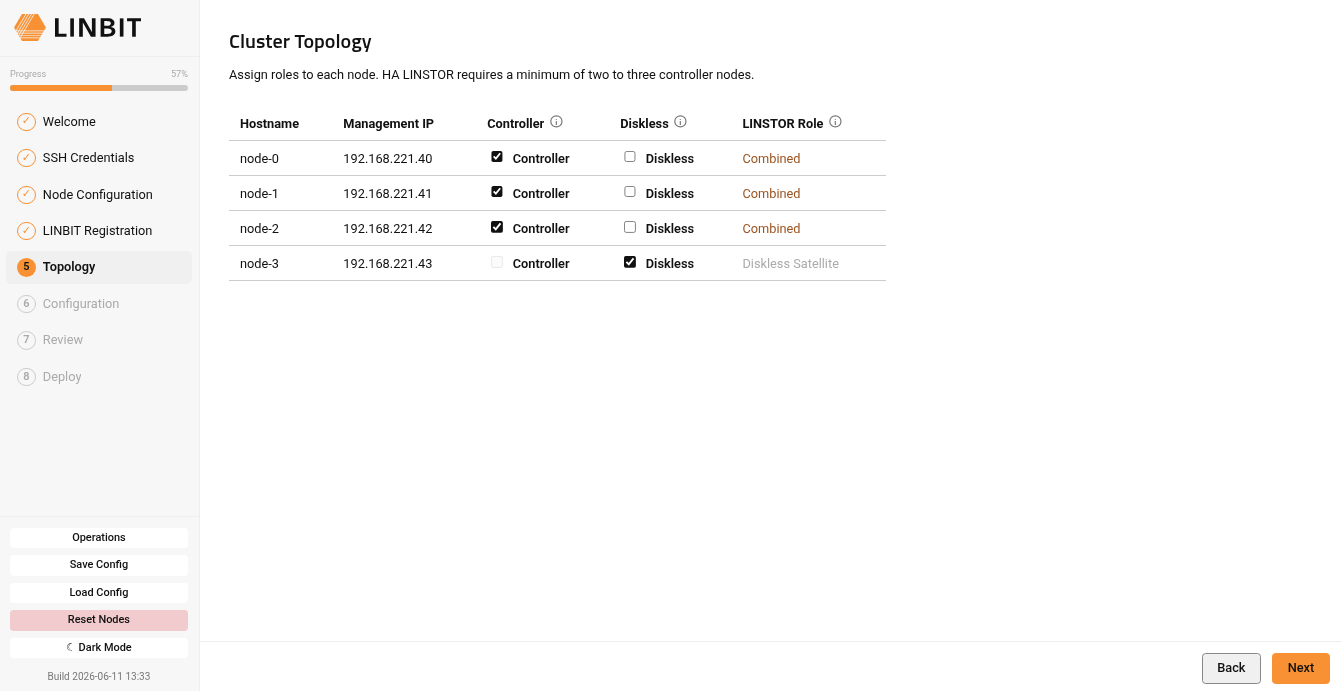
The next deployment tool screen lets you choose a topology for your cluster. This is where you can designate LINSTOR roles for nodes in your cluster. If your cluster consists of the tool-enforced 3-node minimum, your nodes will be designated Combined nodes, that is, nodes that run both the LINSTOR controller and satellite services. If you have more than three nodes in your cluster, the deployment tool will help enforce valid configurations, for example, having a minimum of three Combined-role nodes.
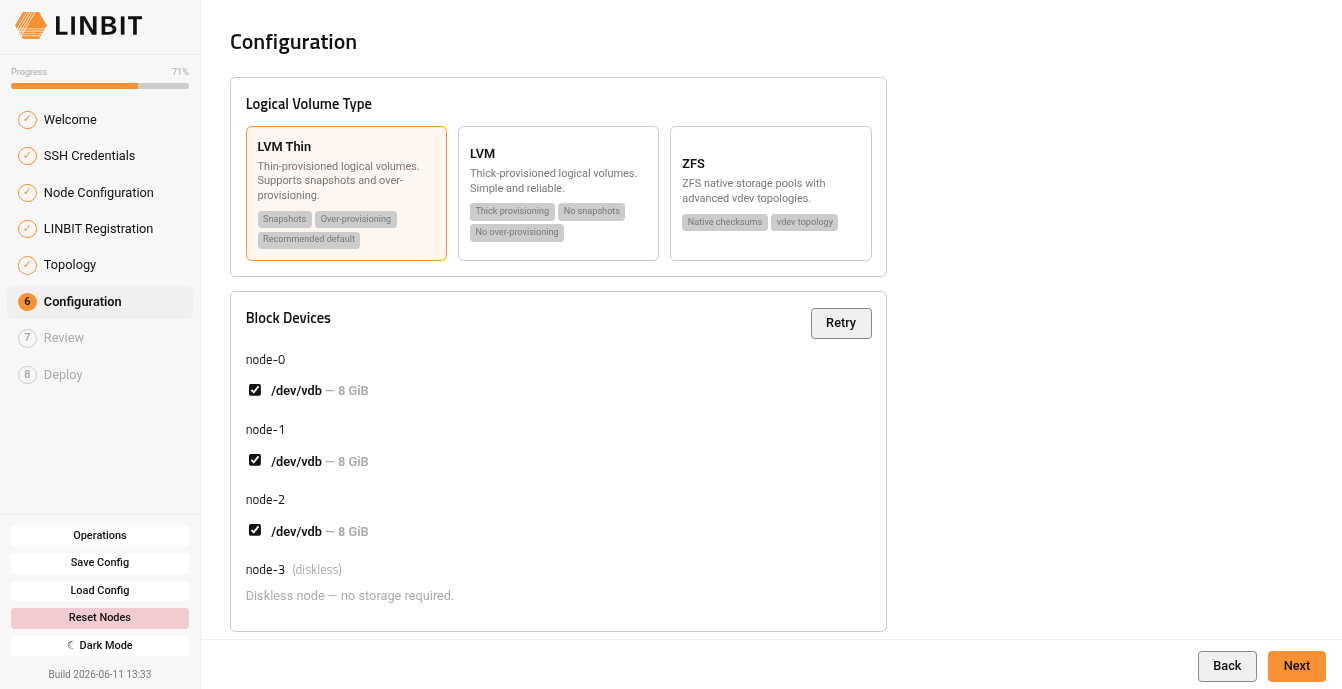
In the next step, after choosing a cluster topology, on the configuration screen, you choose which block devices to add to LINSTOR management and which logical volume type to use. The deployment tool supports LVM thin- or thick-provisioned logical volumes and thin-provisioned ZFS volumes.1 Here, you do not need to run any device preparation or logical volume management commands. The deployment tool and LINSTOR handle setup and configuration, after you make your choices.
Also on the deployment tool configuration screen, you can specify if you want your storage to be local-only, or if you want the deployment tool to create highly available network-attached storage for you, for example, iSCSI or NVMe-oF targets, or an NFS export. Other configuration options are possible on this screen such as using SSL/TLS to encrypt LINSTOR control plane traffic, and choosing a virtual IP (VIP) address through which to reach the LINSTOR controller node which also hosts the LINSTOR GUI. The deployment tool gives you a human-readable summary of your selections in the “What will be deployed” description on the configuration screen so you can verify them.

Reviewing selections and deploying your cluster configuration
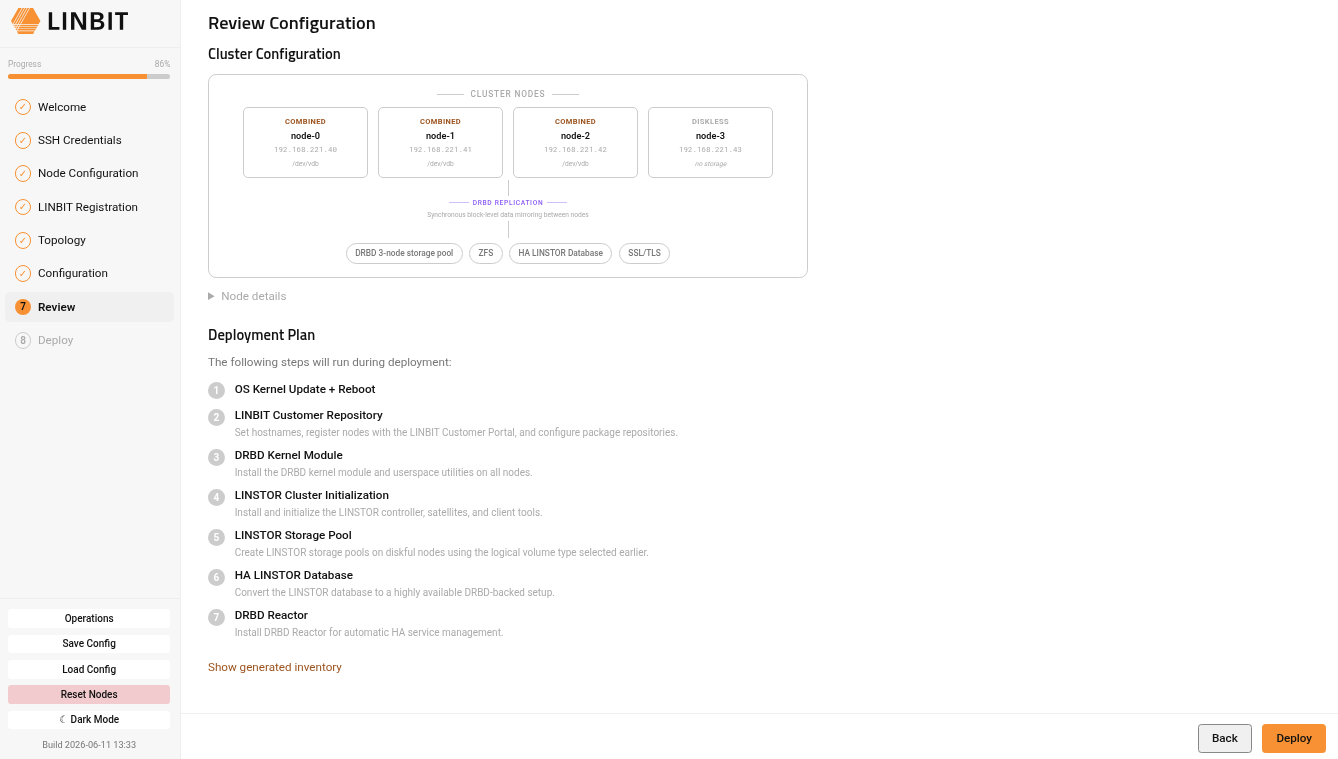
After you configure your cluster, the next screen in the deployment tool will show you a review of your cluster configuration and its deployment plan. Here is where you might want to click the Save Config button in the tool to save your configuration, before you click the Deploy button.
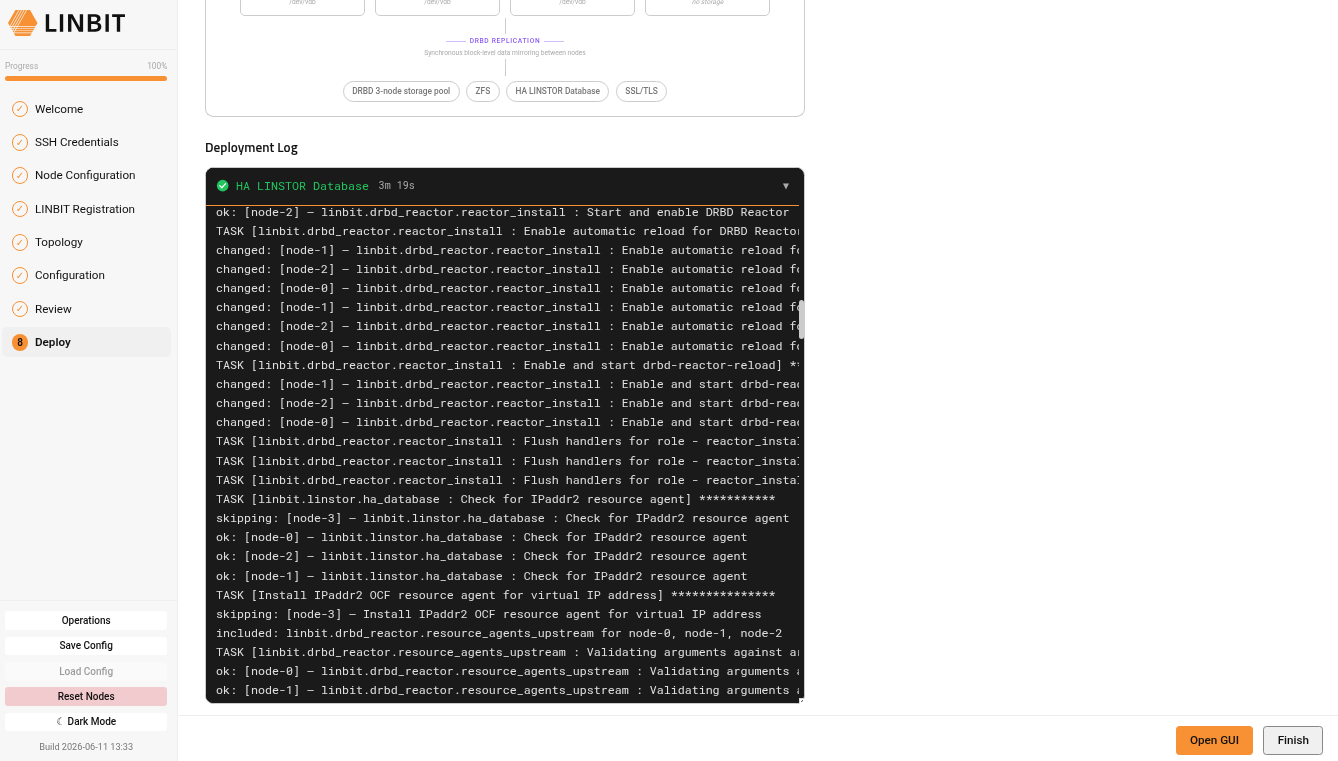
Clicking the Deploy button starts the configuration deployment in your cluster by using the LINBIT Ansible collections. The process might take some time depending on network connection speeds and your configuration. All the deployments that I have done on VMs have finished in about 20 to 25 minutes. The deployment tool shows its progress while it is doing its work. Expanding the steps in the deployment log pane on the screen gives you a glimpse into some of the behind-the-scenes Ansible Playbook tasks that drive the deployment tool.
Next steps after completing the deployment
After the deployment tool finishes deploying LINSTOR and your configuration into your cluster of nodes, there are a few places you can go next. An Operations tab on the Deploy screen lets you download an operator guide for your cluster in either PDF or EPUB format. Here you can also run failover tests of different types, such as testing that when a node crashes, the HA LINSTOR database fails over to another node. During failover tests, you can see descriptions of what the deployment tool is doing, including LINSTOR and DRBD® Reactor client commands that might help new users become oriented.
When the deployment finishes, clicking a Support tab gives you options to download a LINSTOR SOS report should you need to give one to the LINBIT support team to help diagnose or resolve issues. On this tab, you can also view an Ansible inventory file for your cluster. Experienced users might use this to run further Ansible tasks on the cluster to automate operations.
Conclusion
This getting started guide to using the deployment tool is not comprehensive, intentionally. The last thing I want to do is exhaust someone reading a long blog article about a simple-to-use tool.
The best way to get started using the deployment tool is to download it from the LINBIT website and run it. Logically ordered steps and help text within the tool are likely enough for you to use the tool successfully, even without an orientation.
If you have any feedback about the deployment tool, reach out to the LINBIT team.
- If your nodes are running Ubuntu, the deployment tool will install and configure ZFS automatically. If your nodes are running Red Hat Enterprise Linux (RHEL) or a variant thereof, you will need to install ZFS manually first. The deployment tool will warn you about all of this as you make your selections and before you deploy your configuration.↩︎