
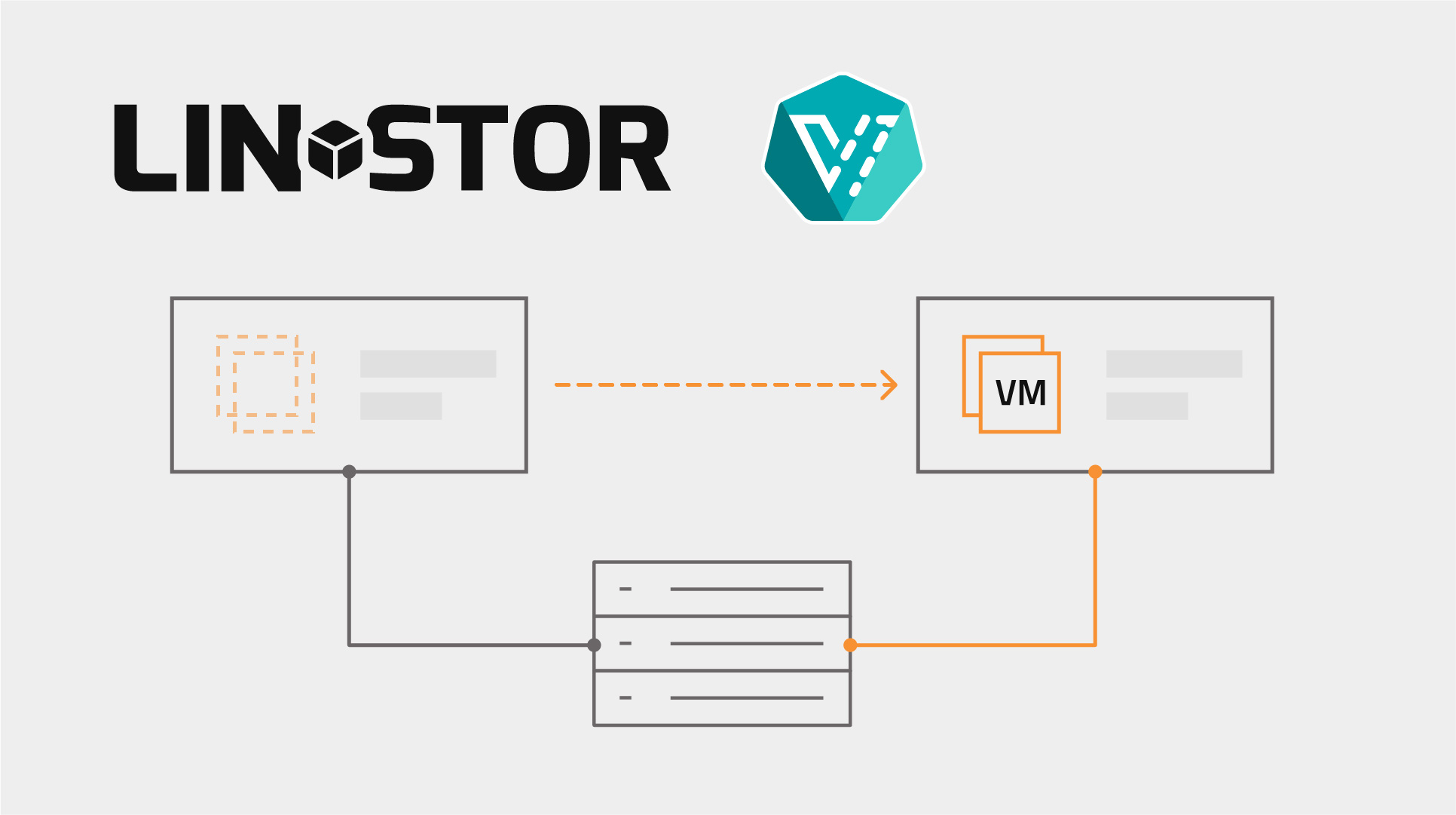
Many organizations that move virtual machines (VMs) to Kubernetes with KubeVirt already own a storage area network (SAN), and want to keep using it. LINSTOR®, developed by LINBIT®, usually provides highly available storage in Kubernetes by replicating volumes between nodes with DRBD®. When a SAN already makes the same LUN visible to every node, replication is not needed: what is needed is coordination, so that the nodes sharing the LUN do not trip over each other when trying to access it.
LINSTOR shared-space storage pools provide that coordination. Several nodes use one LVM volume group on a shared LUN, and LINSTOR tracks which node is using each volume. Together with the LINSTOR CSI driver, this gives you ReadWriteMany (RWX) block volumes on SAN storage, without DRBD, which is what KubeVirt needs to live migrate a VM from one node to another.
This article explains how shared-space storage pools work, then walks through preparing the nodes, creating the storage pool and a StorageClass, and live migrating a VM whose disk lives on the SAN.
An overview of shared-space storage pools
A regular LINSTOR LVM-backed storage pool belongs to one node. LINSTOR assumes that the volume group behind it is local to that node, and that the free space it reports is free space on that node only.
A shared-space storage pool is a pool that several nodes define as the same SAN-backed volume group, each giving it the same shared-space identifier. LINSTOR then knows that these pools are one space: it counts the free space once, creates each logical volume once, and lets every node with the shared-space storage-pool defined use it.
Because every node can see every logical volume, something has to decide which nodes can activate a volume at a given time. LINSTOR supports two locking modes for this:
- LINSTOR internal locking
- The LINSTOR controller service tracks which nodes have each volume active, and creates a volume as inactive on a node when another node already has it active. The volume group is an ordinary LVM volume group, and nothing beyond LINSTOR needs to run on the nodes.
- External locking with lvmlockd
- LVM itself enforces the locks, through the
lvmlockddaemon and a lock manager such assanlock. The volume group must be created as a shared volume group (vgcreate --shared), andlvmlockdand the lock manager must run on every node.
For most Kubernetes clusters, LINSTOR internal locking is the better choice: it needs no extra services on the nodes, and Kubernetes and KubeVirt already make sure that only one VM writes to a volume. Consider external locking when hosts or tools outside LINSTOR can also reach the volume group, because LVM then enforces the locks on every node, no matter what activates a volume.
This article uses LINSTOR internal locking. Choose the mode before you create the storage pool, because you cannot change it on an existing pool.
⚠️ WARNING: The
sanlocklock manager appears to be broken on Ubuntu 22.04. If you plan to use external locking, avoid Ubuntu 22.04 on your Kubernetes nodes.
Prerequisites and the test environment
To follow the instructions in this article, you need:
- A Kubernetes cluster with LINSTOR deployed by the LINSTOR Operator. If you do not yet have LINSTOR in your cluster, you can follow the Integrating LINBIT® SDS with Kubernetes, a Quick Start Guide.
- KubeVirt and the Containerized Data Importer (CDI), for the live migration example.
- An iSCSI LUN that every Kubernetes node can reach.
The examples that follow were run on a 3-node Kubernetes cluster built on AlmaLinux 9 nodes, running Kubernetes 1.37, the LINSTOR Operator 2.12.0, LINSTOR 1.35.2, LINSTOR CSI 1.13.1, KubeVirt 1.9.0, and CDI 1.66.
In this lab, the iSCSI target is not a SAN, but a 2-node high-availability cluster built with Pacemaker, Corosync, and DRBD, which exports a single 8 GiB LUN through a virtual IP address, 192.168.222.35. The iSCSI High Availability Clustering Using DRBD and Pacemaker on RHEL 9 how-to guide describes how to build this kind of cluster. To the Kubernetes nodes, it looks like any other iSCSI target, so the steps are the same for a SAN.
Preparing the nodes
Every Kubernetes node must log in to the iSCSI target and be able to see the LVM volume group on the LUN.
Logging in to the iSCSI target
Run the following commands on every node. Each node needs its own iSCSI initiator name, because nodes created from the same image (like mine were) might share one, and the target cannot tell them apart.
dnf install -y iscsi-initiator-utils
echo "InitiatorName=iqn.2026-10.com.linbit:$(hostname -s)" > /etc/iscsi/initiatorname.iscsi
systemctl enable --now iscsid iscsi
iscsiadm -m discovery -t sendtargets -p 192.168.222.35
iscsiadm -m node -T iqn.2017-01.com.linbit:drbd0 -p 192.168.222.35 --login
iscsiadm -m node -T iqn.2017-01.com.linbit:drbd0 -p 192.168.222.35 \
    --op update -n node.startup -v automatic
Setting node.startup to automatic logs the node back in to the target after a reboot.
Each node sees the LUN as a new SCSI disk. Refer to it by its persistent path under /dev/disk/by-path/, because the /dev/sdX name can differ between nodes and between reboots:
ls -l /dev/disk/by-path/ | grep iscsilrwxrwxrwx. 1 root root 9 Oct 7 22:20 ip-192.168.222.35:3260-iscsi-iqn.2017-01.com.linbit:drbd0-lun-0 -> ../../sdaAdding the LUN to the LVM devices file
On AlmaLinux 9 and other Red Hat Enterprise Linux 9 based distributions, LVM only uses the devices listed in its devices file, /etc/lvm/devices/system.devices. A LUN added after the operating system was installed is not in that file, so LVM ignores it, and the volume group on it stays invisible. Other distributions might not use a devices file, in which case you can skip this step.
Add the LUN to the devices file on every node:
lvmdevices --adddev /dev/disk/by-path/ip-192.168.222.35:3260-iscsi-iqn.2017-01.com.linbit:drbd0-lun-0The entry is stored by the unique identifier (WWID) of the LUN, so it keeps matching the LUN even if its /dev/sdX name changes.
Creating the volume group
Create the volume group on one node only:
vgcreate iscsi_shared /dev/disk/by-path/ip-192.168.222.35:3260-iscsi-iqn.2017-01.com.linbit:drbd0-lun-0This is a plain vgcreate, without the --shared option, because LINSTOR internal locking does not use lvmlockd.
Then verify that every node lists the volume group in its inventory, by running vgs iscsi_shared on each node.
Creating the shared-space storage pool
With the LINSTOR Operator, you define storage pools in a LinstorSatelliteConfiguration resource. The sharedSpace field turns a regular LVM pool into a shared-space pool:
apiVersion: piraeus.io/v1
kind: LinstorSatelliteConfiguration
metadata:
  name: iscsi-shared
spec:
  storagePools:
    - name: iscsi-shared
      lvmPool:
        volumeGroup: iscsi_shared
        sharedSpace: pacemaker-iscsi-lun0
The value of sharedSpace is the shared-space identifier. It can be any name, provided that it is the same on every node that shares the volume group, and unique to that volume group. For external locking, you would also set externalLocking: true in the lvmPool section.
The resource has no node selector, so the LINSTOR Operator creates the pool on every satellite. If only some nodes can reach the LUN, add a nodeSelector to the spec section to limit the pool to those nodes.
Apply the resource:
kubectl apply -f iscsi-shared-pool.yamlThe linstor storage-pool list output shows the pool on each node, with the shared-space identifier in the SharedName column:
linstor storage-pool list -s iscsi-shared╭────────────────────────────────────────────────────────────────────────────────────────────────────────────────────────────╮
│ StoragePool │ Node │ Driver │ PoolName │ FreeCapacity │ TotalCapacity │ CanSnapshots │ State │ SharedName │
╞════════════════════════════════════════════════════════════════════════════════════════════════════════════════════════════╡
│ iscsi-shared │ kube-0 │ LVM │ iscsi_shared │ 7.00 GiB │ 8.00 GiB │ True │ Ok │ pacemaker-iscsi-lun0 │
│ iscsi-shared │ kube-1 │ LVM │ iscsi_shared │ 7.00 GiB │ 8.00 GiB │ True │ Ok │ pacemaker-iscsi-lun0 │
│ iscsi-shared │ kube-2 │ LVM │ iscsi_shared │ 7.00 GiB │ 8.00 GiB │ True │ Ok │ pacemaker-iscsi-lun0 │
╰────────────────────────────────────────────────────────────────────────────────────────────────────────────────────────────╯NOTE: The output was captured after creating the VM disk later in this article, which is why each node reports the same 1 GiB in use: the three pools are one space.
Creating an RWX block StorageClass
The StorageClass exposes the shared-space pool to Kubernetes, and configures how the LINSTOR CSI driver provisions volumes in it:
apiVersion: storage.k8s.io/v1
kind: StorageClass
metadata:
  name: linstor-iscsi-shared-rwx
provisioner: linstor.csi.linbit.com
allowVolumeExpansion: true
reclaimPolicy: Delete
volumeBindingMode: Immediate
parameters:
  linstor.csi.linbit.com/storagePool: iscsi-shared
  linstor.csi.linbit.com/layerList: storage
  linstor.csi.linbit.com/placementCount: "1"
  linstor.csi.linbit.com/allowRemoteVolumeAccess: "true"
The four parameters do the following:
storagePool- Places volumes in the shared-space pool.
layerList: storage- Creates volumes without a DRBD layer, as plain logical volumes. The SAN already makes the volume available to every node, and provides its own redundancy. The LINSTOR CSI driver allows RWX block volumes without DRBD only for the
storagelayer list (orluks storage, for encrypted volumes), and only when every pool the volume can use is a shared-space pool. placementCount: "1"- Creates one copy of each volume. There is only one copy of the data, on the SAN, and LINSTOR does not replicate it.
allowRemoteVolumeAccess: "true"- Lets the volume be used on nodes other than the one it was created on. For layer lists without DRBD, the default allows access only on that node, which would make live migration impossible. This is the parameter that is easiest to miss.
💡 TIP: With LINSTOR CSI 1.13.1 and later, RWX block volumes on shared-space pools are not limited to KubeVirt, and the CSI driver lets any pods share them. The section Things to know before production explains what that means for your workloads.
Live migrating a VM
Applying the following manifest creates a DataVolume that imports a CirrOS image into an RWX block volume from the new StorageClass, and a VM that boots from it. KubeVirt requires RWX access to the VM disk to live migrate a VM, and evictionStrategy: LiveMigrate makes KubeVirt live migrate the VM when its node is drained.
apiVersion: cdi.kubevirt.io/v1beta1
kind: DataVolume
metadata:
  name: cirros-shared
spec:
  source:
    http:
      url: https://download.cirros-cloud.net/0.6.3/cirros-0.6.3-x86_64-disk.img
  storage:
    storageClassName: linstor-iscsi-shared-rwx
    accessModes: [ReadWriteMany]
    volumeMode: Block
    resources:
      requests:
        storage: 1Gi
---
apiVersion: kubevirt.io/v1
kind: VirtualMachine
metadata:
  name: cirros-shared
spec:
  runStrategy: Always
  template:
    spec:
      evictionStrategy: LiveMigrate
      domain:
        memory:
          guest: 256Mi
        devices:
          disks:
            - name: root
              disk: {bus: virtio}
          interfaces:
            - name: default
              masquerade: {}
      networks:
        - name: default
          pod: {}
      volumes:
        - name: root
          dataVolume:
            name: cirros-shared
After you apply the configuration and the CDI finishes the import operation, the VM starts. You can then enter the following command to show the status of the running VirtualMachineInstance (VMI).
KubeVirt should report that the VMI can be live migrated:
kubectl get vmi cirros-shared -o jsonpath='{range .status.conditions[*]}{.type}={.status}{"\n"}{end}'Ready=True
DataVolumesReady=True
LiveMigratable=True
StorageLiveMigratable=TrueAt this point, the volume exists on one node, the node running the VM:
linstor resource list -r pvc-63e9e3e2-d2a5-4164-86d5-2a21175487f1╭──────────────────────────────────────────────────────────────────────────────────────────────╮
│ ResourceName │ Node │ Layers │ Usage │ Conns │ State │ Vote │
╞══════════════════════════════════════════════════════════════════════════════════════════════╡
│ pvc-63e9e3e2-d2a5-4164-86d5-2a21175487f1 │ kube-1 │ STORAGE │ │ Ok │ Created │ Yes │
╰──────────────────────────────────────────────────────────────────────────────────────────────╯Start a live migration by using the virtctl command:
virtctl migrate cirros-sharedKubeVirt starts a new virt-launcher pod on the destination node, and the LINSTOR CSI driver attaches the volume there. While the VM memory is copied, the volume is active on both nodes, because the source and destination QEMU processes both hold the disk open:
╭──────────────────────────────────────────────────────────────────────────────────────────────╮
│ ResourceName                             │ Node   │ Layers  │ Usage │ Conns │   State │ Vote │
╞══════════════════════════════════════════════════════════════════════════════════════════════╡
│ pvc-63e9e3e2-d2a5-4164-86d5-2a21175487f1 │ kube-1 │ STORAGE │       │ Ok    │ Created │ Yes  │
│ pvc-63e9e3e2-d2a5-4164-86d5-2a21175487f1 │ kube-2 │ STORAGE │       │ Ok    │ Created │ Yes  │
╰──────────────────────────────────────────────────────────────────────────────────────────────╯
Only the source VM writes to the disk until the switchover, when the destination VM takes over. The migration takes about two seconds for this small VM:
kubectl get vmi cirros-sharedNAME AGE PHASE IP NODENAME READY
cirros-shared 22h Running 172.16.126.84 kube-2 TrueAfter the source virt-launcher pod stops, the LINSTOR CSI driver detaches the volume from the source node. LINSTOR first marks the volume as inactive there:
╭───────────────────────────────────────────────────────────────────────────────────────────────╮
│ ResourceName                             │ Node   │ Layers  │ Usage │ Conns │    State │ Vote │
╞═══════════════════════════════════════════════════════════════════════════════════════════════╡
│ pvc-63e9e3e2-d2a5-4164-86d5-2a21175487f1 │ kube-1 │ STORAGE │       │ Ok    │ INACTIVE │ Yes  │
│ pvc-63e9e3e2-d2a5-4164-86d5-2a21175487f1 │ kube-2 │ STORAGE │       │ Ok    │  Created │ Yes  │
╰───────────────────────────────────────────────────────────────────────────────────────────────╯
Then, LINSTOR removes the resource from the source node. Only the LINSTOR resource is removed: the logical volume, and the data on it, stays on the SAN, and is now in use on kube-2 only.
To check that no writes were lost, the VM in this lab ran a script that incremented a counter on its disk once a second, synced it, and printed it to the serial console. Across repeated migrations in both directions, the counter never skipped or repeated a value.
Things to know before production
Before you implement this solution in production, there are a few things you need to know and consider.
- An RWX block volume is not a shared file system.
- LINSTOR lets several nodes use a volume at the same time, but nothing coordinates their writes. KubeVirt makes sure that only one VM writes to the disk during a live migration. If you use these volumes for other workloads, the application must coordinate its own writes, as a cluster file system or a clustered database does. Otherwise, writes from different nodes overwrite each other, and the data on the volume becomes corrupted.
- LINSTOR does not stop a second node from activating a volume.
- With internal locking, LINSTOR creates a volume as inactive on a node when another node already has it active, but an explicit request to activate it will succeed. Avoiding two VM instances on two nodes is the job of Kubernetes and KubeVirt, so configure node fencing, for example with the Kubernetes node out-of-service taint, before relying on automatic VM recovery after a node failure.
- The lock state survives a restart of the LINSTOR controller service.
- LINSTOR stores which nodes have a volume inactive in its database, as a flag on each resource. After a restart, or a move to another node, the LINSTOR controller service has the same view as before.
- The LINSTOR high availability controller does not act on these volumes.
- The high availability controller accelerates failover of pods by watching DRBD state. Volumes without a DRBD layer have no DRBD state, so the high availability controller ignores them.
Conclusion
Shared-space storage pools fill a gap for organizations bringing existing SAN storage into Kubernetes. LINSTOR for Kubernetes manages the volumes on the SAN the same way it manages replicated volumes on local disks, from the same StorageClass interface, and KubeVirt VMs on those volumes live migrate in the same way as VMs on DRBD backed volumes.
Use shared-space pools when a SAN already provides shared, redundant storage to your nodes. When your nodes have local disks, DRBD replicated volumes provide the redundancy instead, and LINSTOR also supports RWX volumes for live migration on DRBD.
If you are new to LINSTOR in Kubernetes and want to try it in your own cluster by using container images from the official LINBIT container registry, drbd.io, reach out to the LINBIT team to request evaluation access. Alternatively, you can use the freely available upstream project, the Piraeus Datastore, to deploy LINSTOR in Kubernetes.