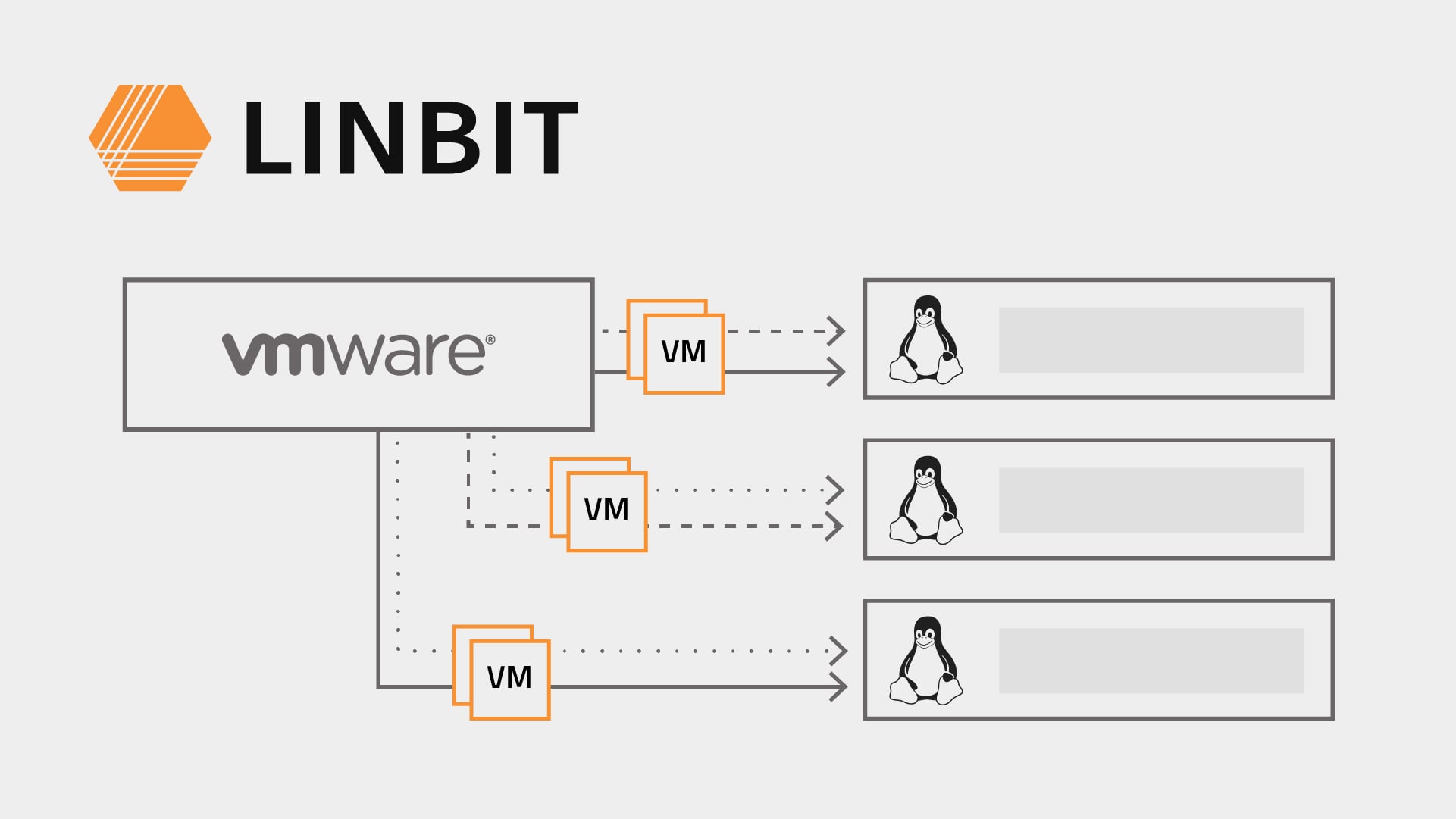
Many system administrators have been migrating away from VMware ESXi due to extreme increases in total cost of ownership (TCO) since Broadcom acquired VMware. After deciding which platform is right for your environment, the next question is how to get your virtual machines (VMs) and their data onto the new platform. There are several general approaches, each with their own strengths and weaknesses. They range from copying disk images by hand to running automated tools that convert the guest operating system and keep downtime to minutes.
The approach that fits best depends on how many VMs you have, how much downtime you can tolerate, and which target platform you picked. Common targets include Proxmox VE, plain KVM with libvirt, oVirt or Oracle Linux Virtualization Manager (OLVM), OpenShift Virtualization (KubeVirt), OpenNebula, and XCP-ng. This article covers the general migration methods first, then touches on the migration tools that specific platforms provide, and finally highlights some things you should plan for regardless of the method you choose.
Shout-out to those who remember doing physical-to-virtual migrations (P2V) in the early 2000’s using dd, netcat, and live boot Linux distros. We thankfully will not mention that process again in this article.
Generic migration methods
The methods in this section are not tied to a specific target platform. Most of them work with any KVM-based hypervisor, and several of the platform-specific tools covered later use them behind the scenes.
Copying VMDK files and converting them with qemu-img
The most manual approach is to copy the virtual disk files from the ESXi datastore to the new hypervisor host and convert them with qemu-img. This method works on nearly any KVM-based platform and gives you full control over each step.
A VMware virtual disk usually consists of two files. The small descriptor file (vm-name.vmdk) is a text file that describes the disk, and the flat file (vm-name-flat.vmdk) holds the data. You need to copy both files, and point qemu-img at the descriptor file:
scp root@esxi-host:/vmfs/volumes/datastore1/vm-name/vm-name.vmdk .
scp root@esxi-host:/vmfs/volumes/datastore1/vm-name/vm-name-flat.vmdk .
qemu-img convert -p -f vmdk -O qcow2 vm-name.vmdk vm-name.qcow2
If you only copy the descriptor file, then qemu-img has no data to convert. If you only copy the flat file, then you can still convert it by using -f raw, because the flat file is a raw disk image. Alternatively, you can use vmkfstools on the ESXi host, or ovftool, to export the disk to a single file before you copy it.
After converting the disk, you attach it to a new VM on the target platform. For example, on Proxmox VE you can import a disk image into an existing VM and a storage of your choice by using qm disk import:
qm disk import 120 vm-name.qcow2 local-lvmThis method needs the guest VM to be offline, but it does not change anything inside the guest. You need to handle drivers, VMware Tools removal, network interface renaming, and boot settings yourself. It is best suited for a handful of VMs, or for cases where you want to understand every step of the process.
Converting VMs with virt-v2v
virt-v2v, from the libguestfs project, is an open source tool for converting VMs from foreign hypervisors to KVM. Unlike qemu-img, virt-v2v modifies the guest during conversion. It installs VirtIO drivers, removes VMware Tools, and adjusts the boot configuration so that the guest can start on KVM.
virt-v2v can pull VMs directly from vCenter or an ESXi host over HTTPS or SSH. It can also read from a local VMDK file or an OVA archive. For output, it can write to libvirt, local disk files, plain QEMU, oVirt or Red Hat Virtualization, and OpenStack.
Many platform migration tools, including the OpenShift Migration Toolkit for Virtualization, use virt-v2v under the hood. For this reason, learning how virt-v2v works helps you troubleshoot those tools, too.
💡 TIP: Transfers from vCenter or ESXi over HTTPS are slow. For better performance,
virt-v2vcan use the VMware Virtual Disk Development Kit (VDDK) as its transport (-it vddk). VDDK is a proprietary library that you need to download from Broadcom.
Exporting and importing OVF or OVA files
You can export a VM from vSphere as an Open Virtualization Format (OVF) package or as an OVA archive (a tar file containing the OVF package). Several platforms can import these files:
- Proxmox VE has
qm importovf. It reads the.ovfmanifest, so extract an OVA archive withtarfirst. - XCP-ng and Xen Orchestra can import OVA files.
- libvirt or oVirt targets can use
virt-v2v -i ovato convert OVA files to a usable form.
Import quality varies by platform. Unless you go through virt-v2v, you still need to handle guest drivers yourself. This method is also fully offline, and exporting large VMs can take a long time.
Platform-specific migration tools
Most Linux-based virtualization platforms now include a tool for importing VMs from VMware. These tools usually automate the steps described in the previous section, and some of them reduce downtime by copying data while the source VM is still running.
- Proxmox VE
- Proxmox VE 8.2 and later include an ESXi import wizard. You add the ESXi host as a storage in the Proxmox VE web interface, and Proxmox VE lists the VMs on that host so that you can import them. The wizard also has a “live import” mode that starts the VM on Proxmox VE while the disk data is still being copied. This cuts downtime, but if the import fails partway through, then any data that the VM wrote since the import started is lost.
- OpenShift Virtualization
- OpenShift Virtualization uses the Migration Toolkit for Virtualization (MTV, upstream project name “Forklift”). MTV supports cold migration and warm migration. A warm migration copies VM disks while the VM keeps running, by using VMware Changed Block Tracking (CBT), and then does a short final cutover. You need to enable CBT on the source VMs before you can use warm migration. MTV also lets you group many VMs into migration plans.
- XCP-ng with Xen Orchestra
- Xen Orchestra has a V2V feature that connects to vCenter or ESXi and imports VMs. This feature includes a warm migration mode.
- oVirt and OLVM
- oVirt and OLVM can add VMware as an external provider and import VMs from it. These platforms use
virt-v2vbehind the scenes. - OpenNebula
- OpenNebula provides a conversion tool, OneSwap, that is aimed at moving vSphere workloads in bulk.
Other migration approaches
Some migration strategies are more niche or specific to an environment, but deserve a mention. The following approaches can actually save time and effort in the right situation.
- Mounting a VMware NFS datastore on the new hypervisor hosts
- If your VMs live on an NFS datastore, then you can mount that datastore on the new hypervisor hosts and read the VMDK files (such as when using
qemu-img) in place. This avoids copying the data, as is required for most of the methods mentioned above. This approach does not work for VMFS or vSAN datastores, because Linux hosts cannot mount them in the same way. - Backing up and restoring
- If you already use a backup product that supports both VMware and your new platform, then you can back up each VM on VMware and restore it to the new hypervisor.
- Rebuilding instead of converting
- For some workloads, it is easier to build fresh VMs from templates or automation, and then migrate or restore only the application data unique to your running instances. This also gives you a chance to clean up VMs that have accumulated years of configuration drift.
Things to plan for before migrating
Regardless of the method you choose, several details come up in nearly every VMware migration. Check each of these for the VMs that you plan to migrate.
- Snapshots
- Consolidate or delete VMware snapshots before you migrate a VM. If you copy the base VMDK of a VM that has snapshots, then you get a stale disk that is missing every write made after the oldest snapshot. Snapshots do not carry over to the new platform in any case.
- Drivers
- Windows guests need VirtIO storage and network drivers to perform well on KVM.
virt-v2vcan install these drivers during conversion. If you use a method that does not modify the guest, then install the drivers from the virtio-win ISO before migrating. Another option is to first boot the migrated VM with a SATA disk controller, install the drivers, and then switch to VirtIO. - Firmware, Secure Boot, and vTPM
- Match the firmware type of the source VM (BIOS or UEFI) on the target VM, and enable Secure Boot if it was enabled on VMware. Virtual TPM (vTPM) state does not migrate. If a Windows guest uses BitLocker with a TPM protector, then have the BitLocker recovery key ready before the first boot on the new platform.
- Networking
- Network interface names inside Linux guests usually change, for example from
ens192toens18. MAC addresses also change unless you set them explicitly on the target VM. Check any configuration that depends on either, such as static IP configuration files, udev rules, DHCP reservations, and firewall rules. - Guest tools
- Remove VMware Tools and install the guest agent for the new platform, for example
qemu-guest-agenton KVM-based platforms.virt-v2vremoves VMware Tools for you. - Licensing
- Windows might require reactivation after migration. Some commercial software is licensed against hardware IDs that change when the VM moves to a new hypervisor.
Choosing a migration method
Whichever method you choose, start with a test migration of a few representative VMs. Keep the original VMs powered off but intact on ESXi until you verify the migrated copies.
For a small environment, the built-in importer of the target platform, or virt-v2v, usually covers most of what you need. For dozens or hundreds of VMs with strict or tight downtime windows, warm migration tools such as MTV, the Xen Orchestra V2V feature, or the Proxmox VE live import mode are worth the setup effort.
LINBIT® develops LINSTOR® and DRBD®, open source software that provides highly available, replicated storage for all of the platforms mentioned in this article. If you are still deciding on a target platform, the open source VMware alternatives article describes several of them and how they integrate with LINBIT software. For platform-specific setup, see the articles about using LINSTOR with Proxmox VE, OpenShift, and OpenNebula. If you have questions about using LINSTOR storage as a part of your migration, reach out to the LINBIT team.